How To Create Desktop Shortcuts with the Google Chrome

Google Chrome
Raj KishorRaj KishorAug 14, 2024

Google Chrome made its debut in 2008, first as a beta release for Windows XP and later versions, supporting 43 languages. It officially launched on December 11, 2008. Since then, it has become a staple browser for millions around the world. 

Whether you're starting your day with CNN, checking your Gmail, or catching up on the latest tech news (like ours), we all have that one page we visit the moment we open our browser. 

To make things even easier, Google Chrome lets you create desktop shortcuts for your favorite online pages. This means you can access your preferred site with just a single click, instead of spending a couple of extra minutes searching for it.
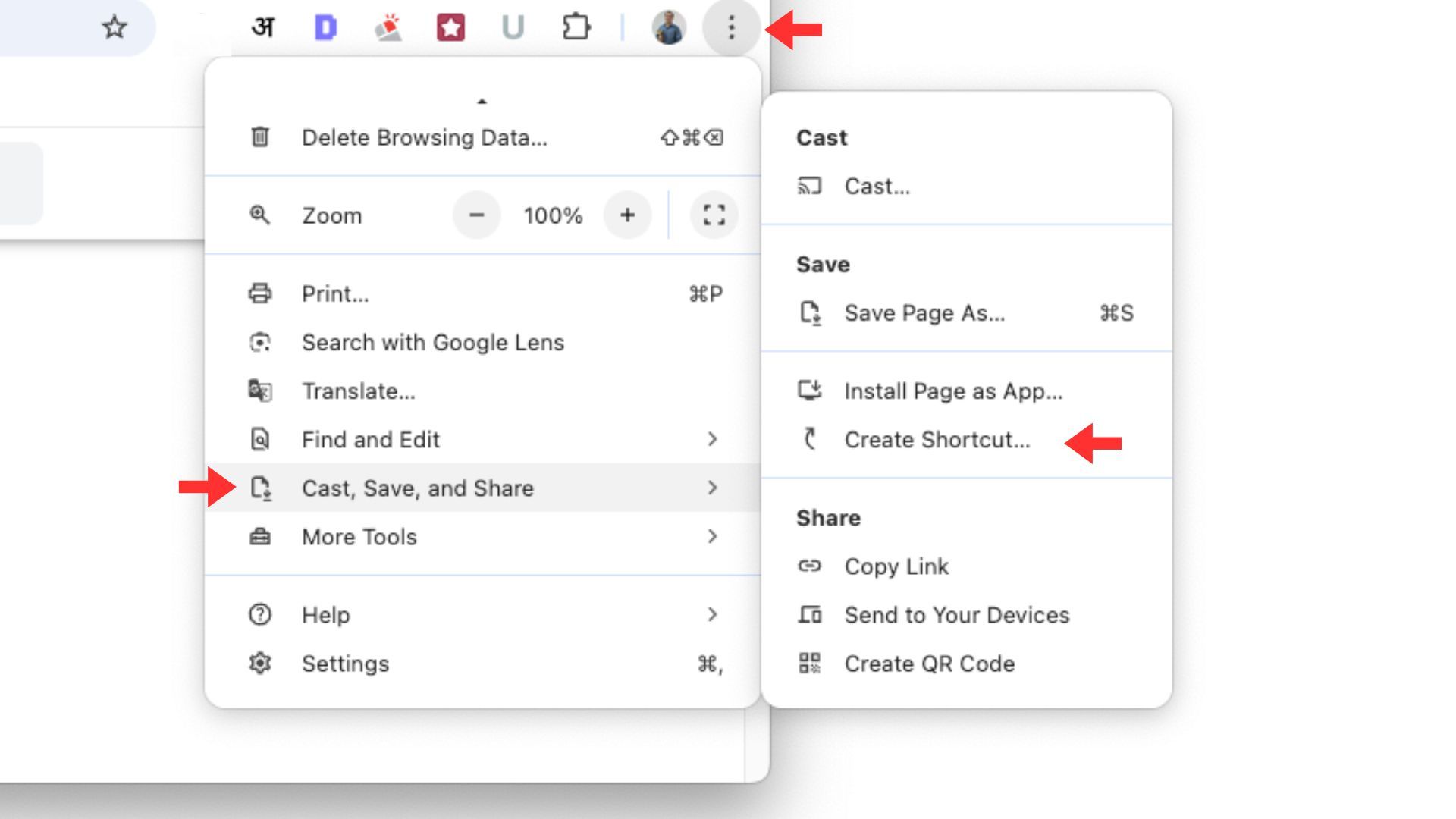
Here’s How You Can Set Up a Desktop Shortcut in Google Chrome

  1. Navigate to Your Favorite Page: Open Google Chrome and head to the website you want to create a shortcut for.
  2. Access the Menu: Click the “⋮” icon located in the upper-right corner of the screen.
  3. Select More Tools: From the dropdown menu, choose “Cast, Save, and Share.”
    Create Chrome tab as desktop shortcut on desktop
  4. Create the Shortcut: Click on “**Create shortcut.**”
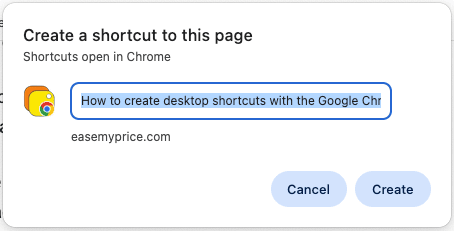
  5. Customize and Confirm: You can rename the shortcut if you like. If you prefer the link to open in a separate window without the editable search box, check the “Open as Window” option. Finally, click “Create.”
    screenshot customization.png

You now have a handy desktop shortcut that will take you directly to your chosen website with just one click, making your online browsing more efficient and streamlined.

Frequently Asked Questions

What is Chrome?

+

What is a Webpage?

+
Raj Kishor
Written by

Raj Kishor

Raj Kishor holds a Master of Computer Application degree from Anna University and has been writing about technology since his college days. At EaseMyPrice, he specializes in in-depth how-to guides and troubleshooting content across Android, Windows, and emerging software — from fixing device issues to explaining tools like password managers and VPNs. His hands-on approach, rooted in a lifelong passion for tech that began with building his first PC in high school, makes his guides practical and easy to follow.

How-To Guides, Software & Device Troubleshooting, Android/Windows