20 Hidden Google Games You Should Play in 2026
Discover 20 hidden Google games to play in 2026, from Snake to Champion Island. Links and descriptions included for free, fun gaming.
Apple's iPhones are packed with AI-powered features like Siri, Live Text, Visual Lookup, and smart photo organization. These capabilities run behind the scenes, making everyday tasks more convenient. Siri interprets your voice commands, Live Text lets you extract text from images, and Visual Lookup can identify objects in your photos—all thanks to advanced machine learning integrated in newer versions.
With the increasing reliance on artificial intelligence, users sometimes encounter problems such as:
These issues can disrupt the smooth operation of daily features, making it important to know how to quickly resolve them.
The latest version of iOS introduced significant improvements to Siri’s natural language understanding and enabled more on-device processing. This not only boosts privacy but can also speed up responses. However, some early adopters reported that Siri sometimes fails to activate after updates, prompting Apple to issue quick patches. Apple has also rolled out refinements to Live Text accuracy and made Visual Lookup respond faster, addressing bugs in rapid succession during early October 2024.
AI tools on the iPhone depend on a mix of local processing and cloud-based machine learning. Internet outages, outdated software, or corrupted app data can result in temporary glitches. Additionally, new updates—while bringing new features—might introduce unforeseen bugs or compatibility issues.
For tips on managing AI-related effects on your device, you might want to read about how to reduce battery drain on iPhone caused by AI features if performance drops are also a concern.
Apple and iOS experts recommend several key strategies:
Check regularly for the latest iOS updates. Bug fixes are frequently included in incremental patches, so staying up-to-date helps resolve known issues.
A simple reboot often clears temporary bugs affecting AI functions like Siri or Live Text.
Since services like Siri and Visual Lookup require online connectivity, a weak or unstable connection can cause errors or slow responses.
Go into your iPhone’s Settings:
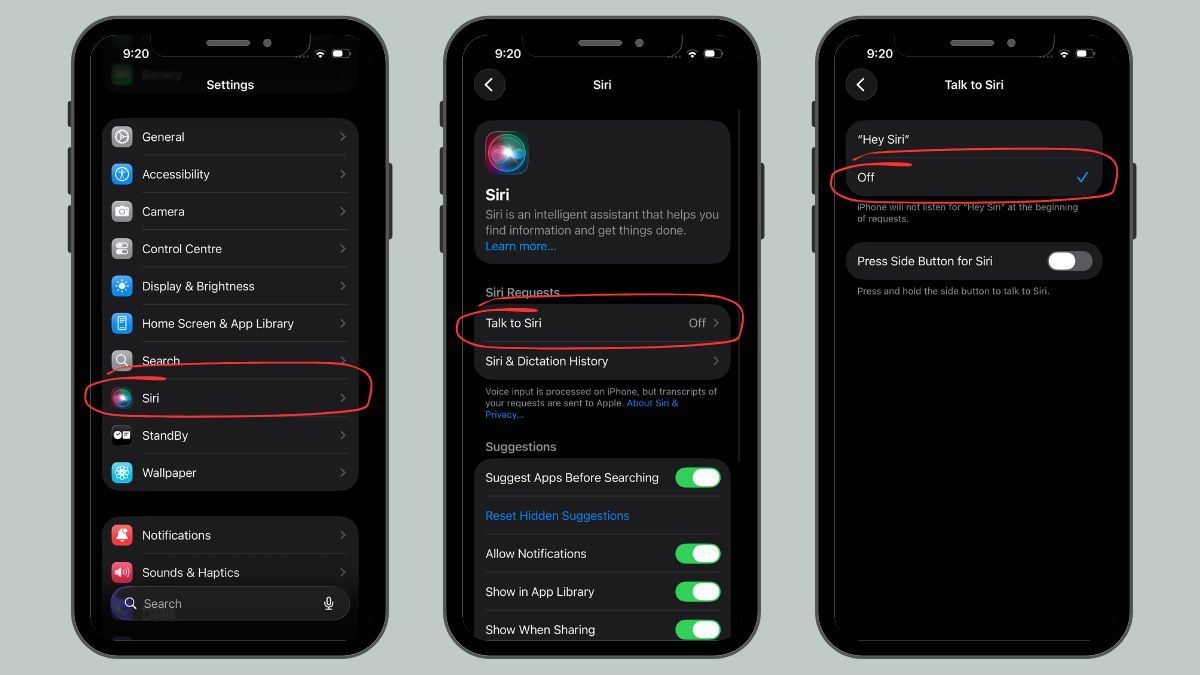
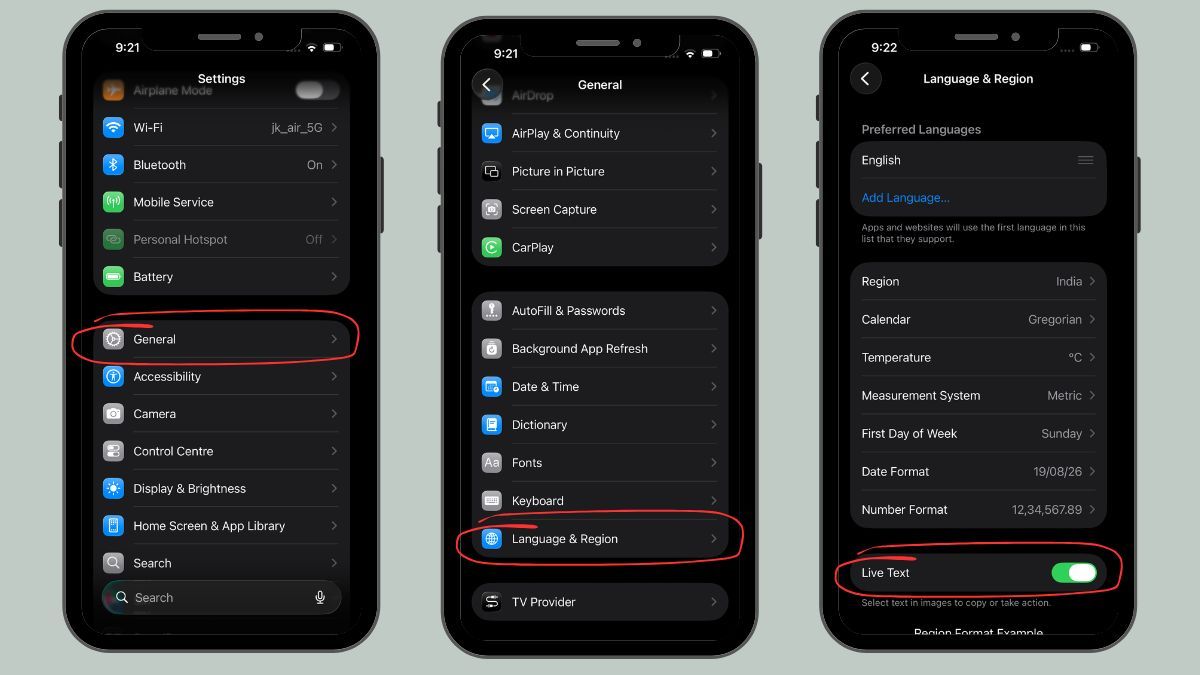
Where possible, turn on on-device processing for AI features. This not only speeds up responses but enhances your privacy by reducing data sent to Apple’s servers.
Apple’s support documentation consistently highlights the importance of updating iOS, checking connection settings, and, if problems persist, resetting relevant system preferences. Experts further advise that with the growing scope of AI integration, regular device maintenance and vigilance after major iOS releases are more important than ever.
For more on ongoing updates and upcoming AI-powered capabilities in future iOS versions, stay up-to-date with Apple Rolls Out iOS 26.2 Public Beta 1 with New Customization and App Upgrades and insights into Apple Adds Option to Turn Off Liquid Glass in iOS 26.1 Developer Beta. You may also find it helpful to follow reports like Apple iPhone 18 Pro Launch Expected in September with Adjusted Keynote Date for how AI features continue to shape future iPhones.