How to Determine if Someone is Remotely Accessing Your iPhone
Learn key signs of unauthorized remote access on your iPhone and steps to secure your device effectively.
You open YouTube ready to watch a video, but all you see is a black screen. The sound might play, or nothing happens at all. This is a common problem that frustrates many people. The good news is you can often fix it yourself with a few simple checks.
This guide covers black screens with no error message. If you see an error, the video may be age-restricted or private. Log into your YouTube account first. If the video is blocked in your area, a VPN can help, but only if needed.
Ad blockers stop ads from loading. Sometimes they also stop the video player from working.
Open the video that shows the black screen. Turn off your ad blocker completely. Reload the page and try playing the video again.
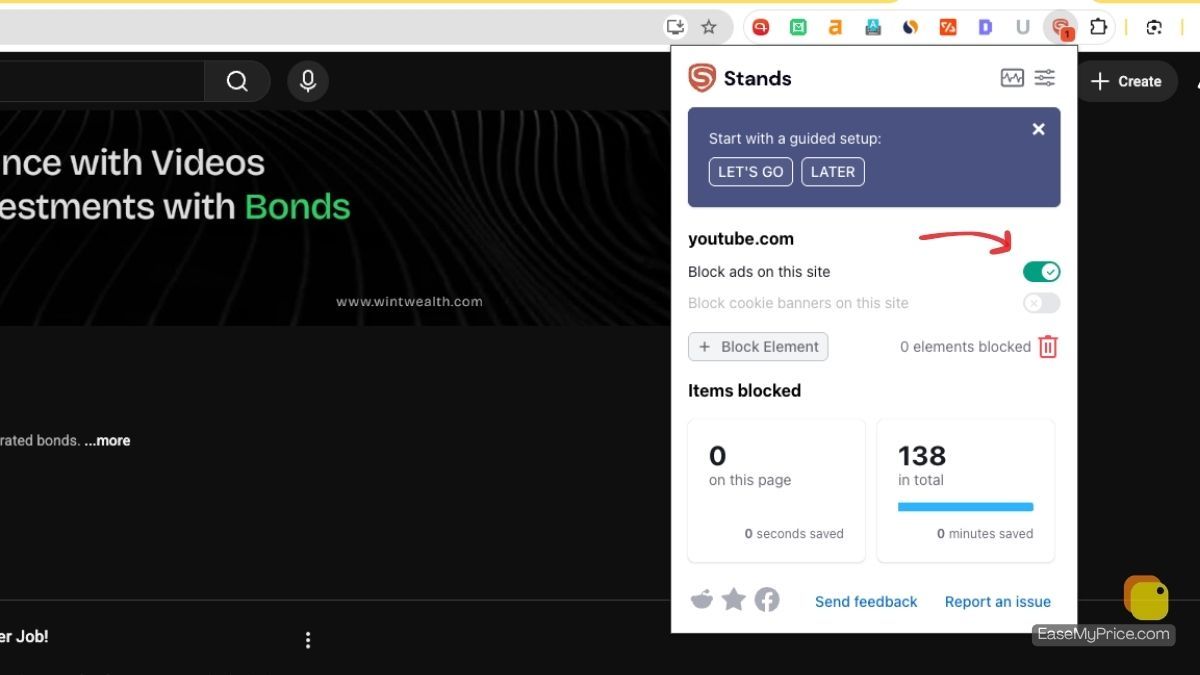
If it works now, your ad blocker was the cause. Look in the ad blocker settings for a way to allow YouTube. Some people use custom filter lists that block too much. Turn those lists off or remove them. This often lets videos play while still blocking most ads.
You might be using difference ad-blocker extention. Most of them will have turn of togger button.
Your browser or computer can cause a black screen too. Outdated cache, too many cookies, or low memory often create this issue.
Try these steps one by one. Test the video after each step so you know what fixed it.
Clearing cache and cookies removes old files that stop YouTube from loading correctly. Many people solve the black screen just by doing this. If you use Safari, you can follow steps similar to those in our guide on clearing cache cookies and history in Safari.
Slow or unstable internet can leave YouTube with a black box instead of a video.
Move closer to your router or switch to a wired connection if possible. Stop other downloads or streaming on the same network so more bandwidth goes to YouTube.
Restart your router and modem. Unplug them for 30 seconds, then plug them back in.
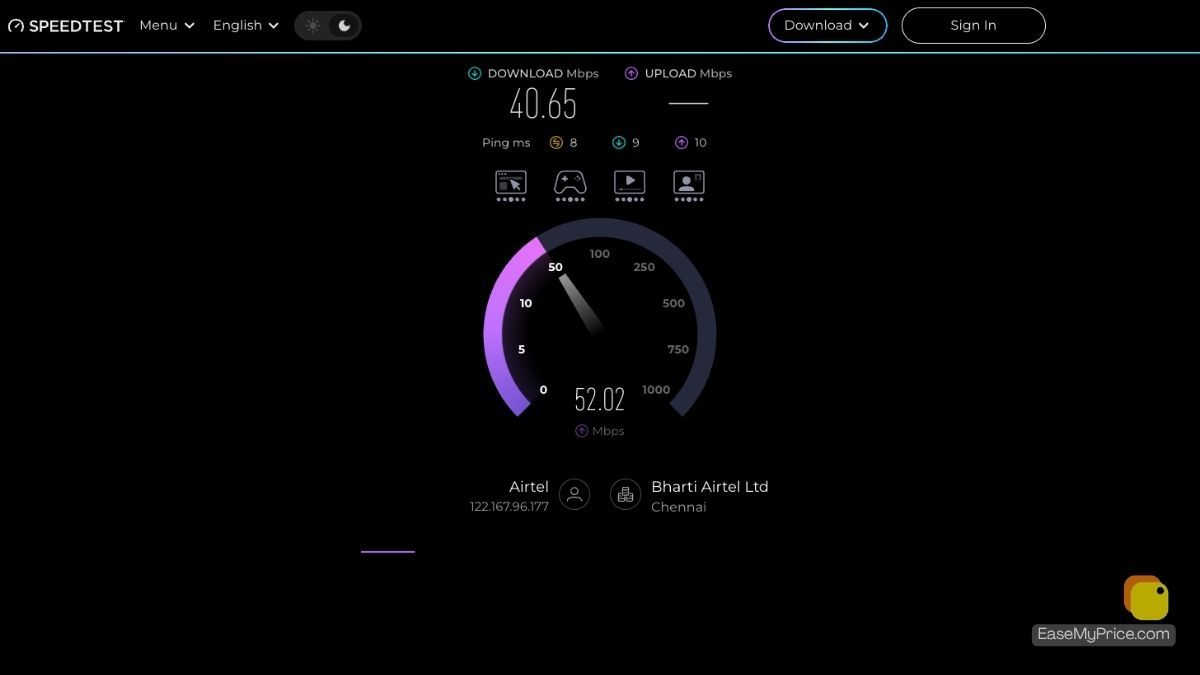
Flush the DNS cache on your computer. Change your DNS settings to a free public one if the problem continues. Test your internet speed using SpeedTest. If it is very low, contact your internet provider.
A good VPN can sometimes help with regional blocks, but make sure the server location is strong. You can learn more about that in our article on importance of server locations in VPN performance. For Android users, check our list of best VPNs for Android phones and tablets.
On phones and tablets the YouTube app can show a black screen or play sound only.
Clear the YouTube app cache. On Android go to Settings > Apps > YouTube > Storage > Clear Cache. On iPhone, you may need to offload or reinstall the app.
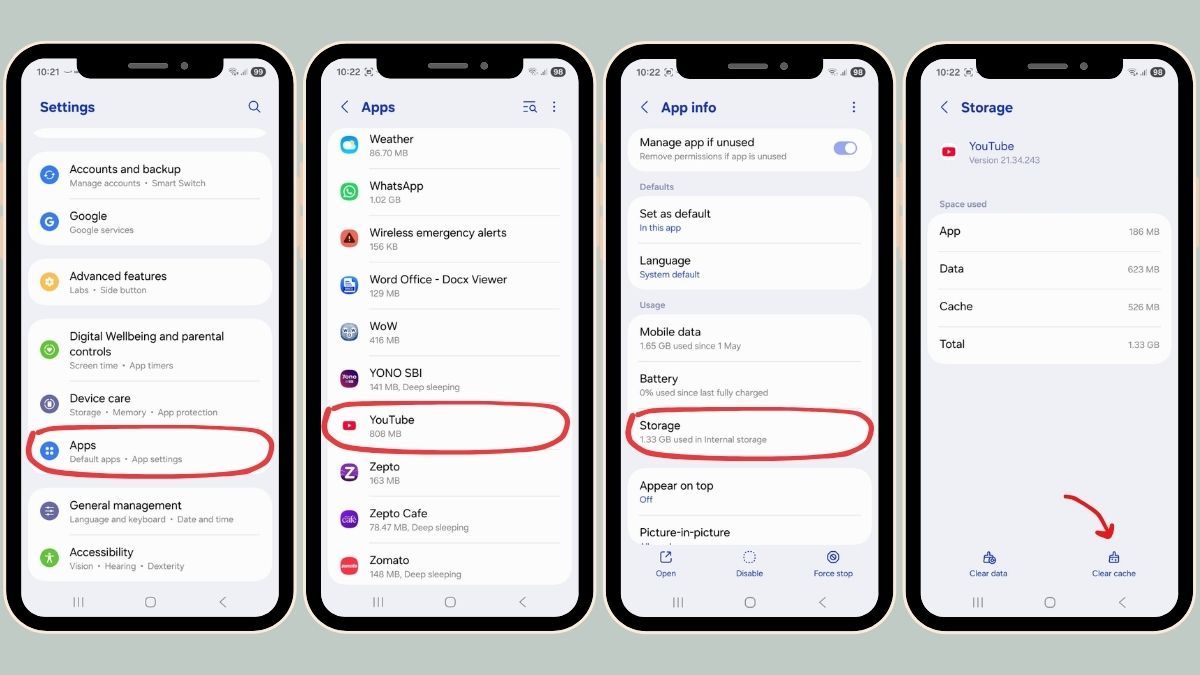
Restart your phone. If that fails, delete the YouTube app and install it again from the Play Store or App Store.
While waiting for an app update, open youtube.com in your mobile browser and test the video there.
A black screen means the video did not load properly. The most frequent reasons are:
Most of the time the problem is on your side and the steps above fix it. If YouTube itself has an outage, you will need to wait until their servers recover.
Other small tips can help too. Lower the video quality in the player settings if the black screen keeps returning. Try watching in private or incognito mode. Make sure your device volume is up and the video is not muted.
If you want to download videos later for offline viewing, see our guide on how to download YouTube videos. For blocking channels that cause issues, check how do I block a YouTube channel.
These simple actions solve the black screen for most users. Start with the ad blocker and cache steps because they work the fastest.
Have you fixed a YouTube black screen with one of these methods? Share what worked for you in the comments so others can try it too.