20 Hidden Google Games You Should Play in 2026
Discover 20 hidden Google games to play in 2026, from Snake to Champion Island. Links and descriptions included for free, fun gaming.
AI technology plays a bigger role than ever on iPhones, powering features that improve convenience and personalization. However, these intelligent tools—like Siri Suggestions, smart notifications, and advanced image processing—can also contribute to faster battery depletion.
iOS updates consistently add or enhance AI capabilities. For example, iOS 27(beta) introduced more AI-based personalization features, increasing both usefulness and power demands. While improvements in battery optimization algorithms aim to balance this out, managing AI-powered settings remains important for those keen on maximizing battery life.
Modern iPhones run numerous AI-related processes in the background. Common culprits of excess battery drain include:
Here are proven tactics to keep AI-powered features from sapping your battery:
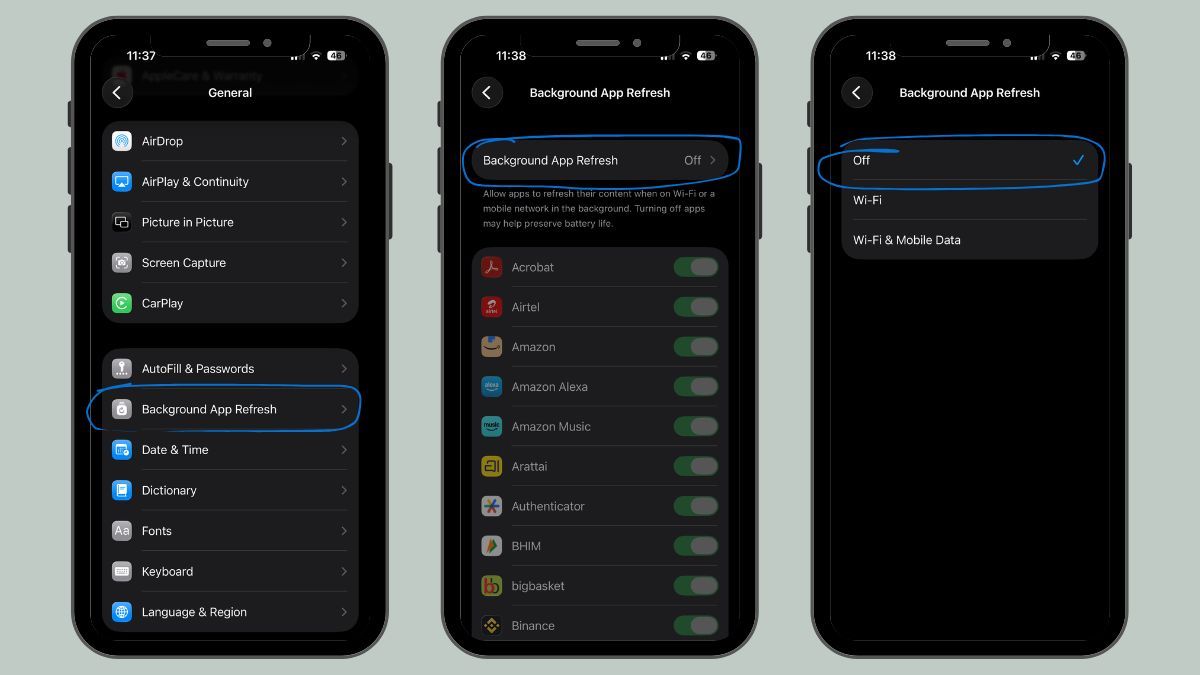
Disabling Background App Refresh for apps that don't need real-time updates can have a noticeable impact. Go to Settings > General > Background App Refresh and turn it off globally or select apps individually.
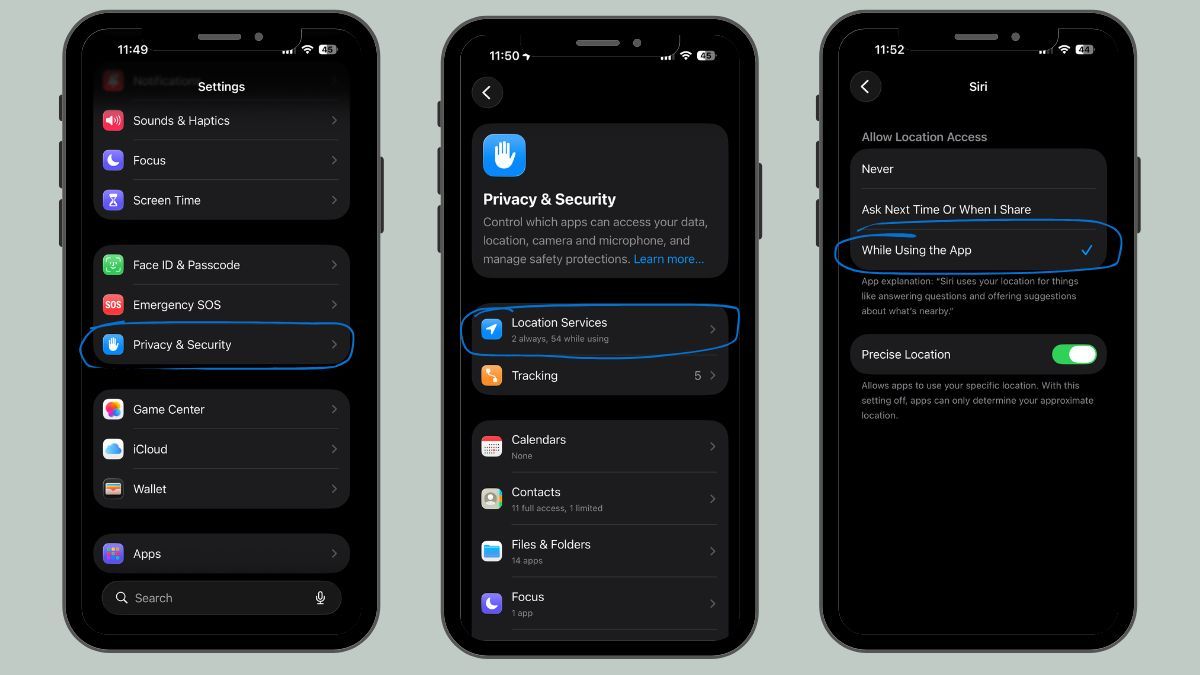
Many AI features use location data in the background. Limit this by heading to Settings > Privacy & Security > Location Services, and choosing 'While Using' or disabling access for AI-driven apps.
AI-driven notifications can be reduced to cut battery use. In Settings > Notifications, review which apps send frequent alerts and adjust their permissions.
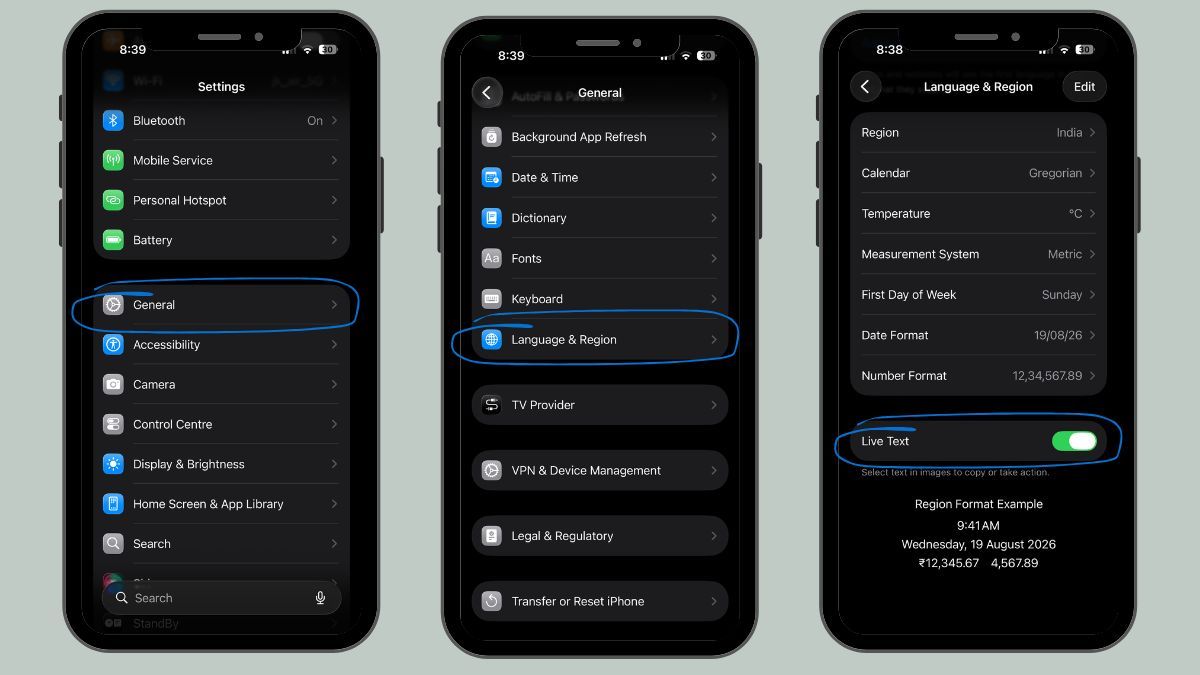
Recent iOS versions let users turn off features such as Live Text and Visual Lookup. You can find these toggles in Settings > General > Language & Region or in the Photos settings.
If you rarely use voice activation, consider switching off 'Hey Siri.' This feature keeps the microphone listening in the background, consuming power. Access this option in Settings > Siri & Search.
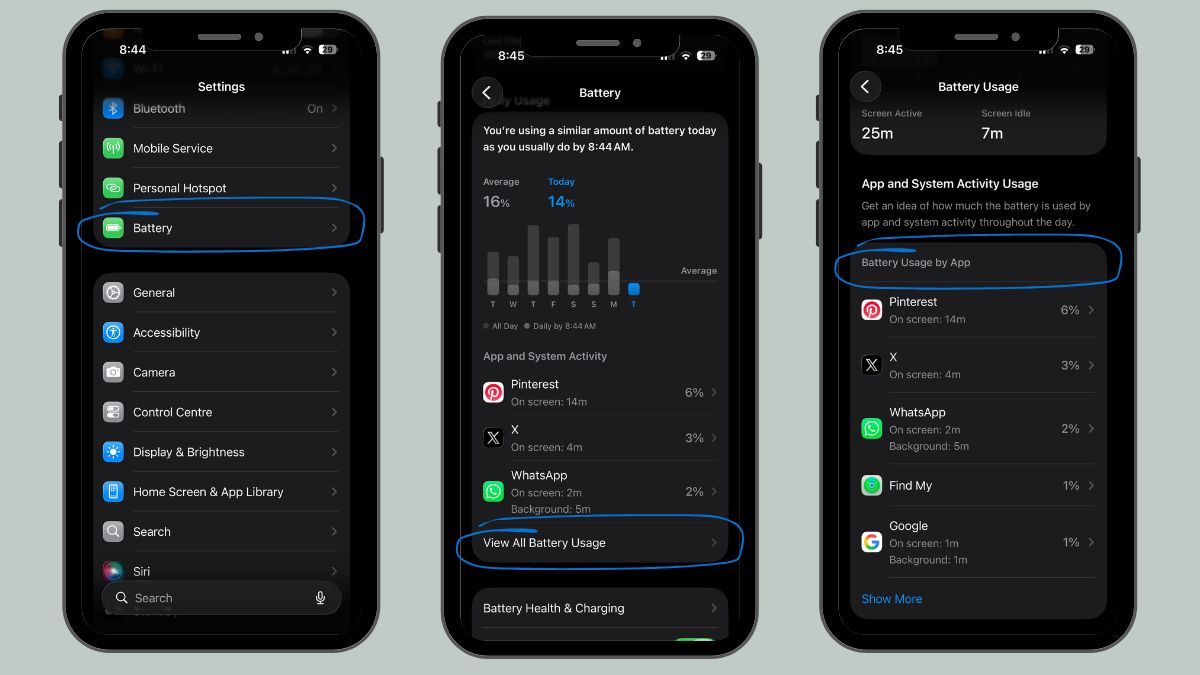
Regularly check which apps are using the most power. In Settings > Battery, review details about app-specific consumption. Apps with heavy AI activity are likely to top the list.
Apple continually refines battery management with each software release. Updates often include efficiency improvements alongside AI upgrades. Following the launch of iOS 17 and subsequent releases, battery optimization tools have become more effective. To understand the evolution of recent iOS features, you can read about updates like Apple Drops iOS 26.1 Beta 2: Fresh AI Tricks and Slick Upgrades for Your iPhone.
All these measures rely on built-in iOS settings—no third-party apps or hardware are required. Any iPhone running iOS 26 or later can use these controls to optimize power.
Industry professionals recommend:
AI-powered features can transform your iPhone experience but also increase battery consumption. Understanding which tools use the most energy and knowing how to control them helps users find the right balance between smart functionality and lasting battery life.