
How to Determine if Someone is Remotely Accessing Your iPhone
Learn key signs of unauthorized remote access on your iPhone and steps to secure your device effectively.
Experiencing a black screen on your HP laptop can be frustrating, especially if you hear your device powering on but see no display. This guide walks you through practical steps to diagnose and fix black screen problems, from simple brightness checks to hardware troubleshooting.
Adjust Screen Brightness
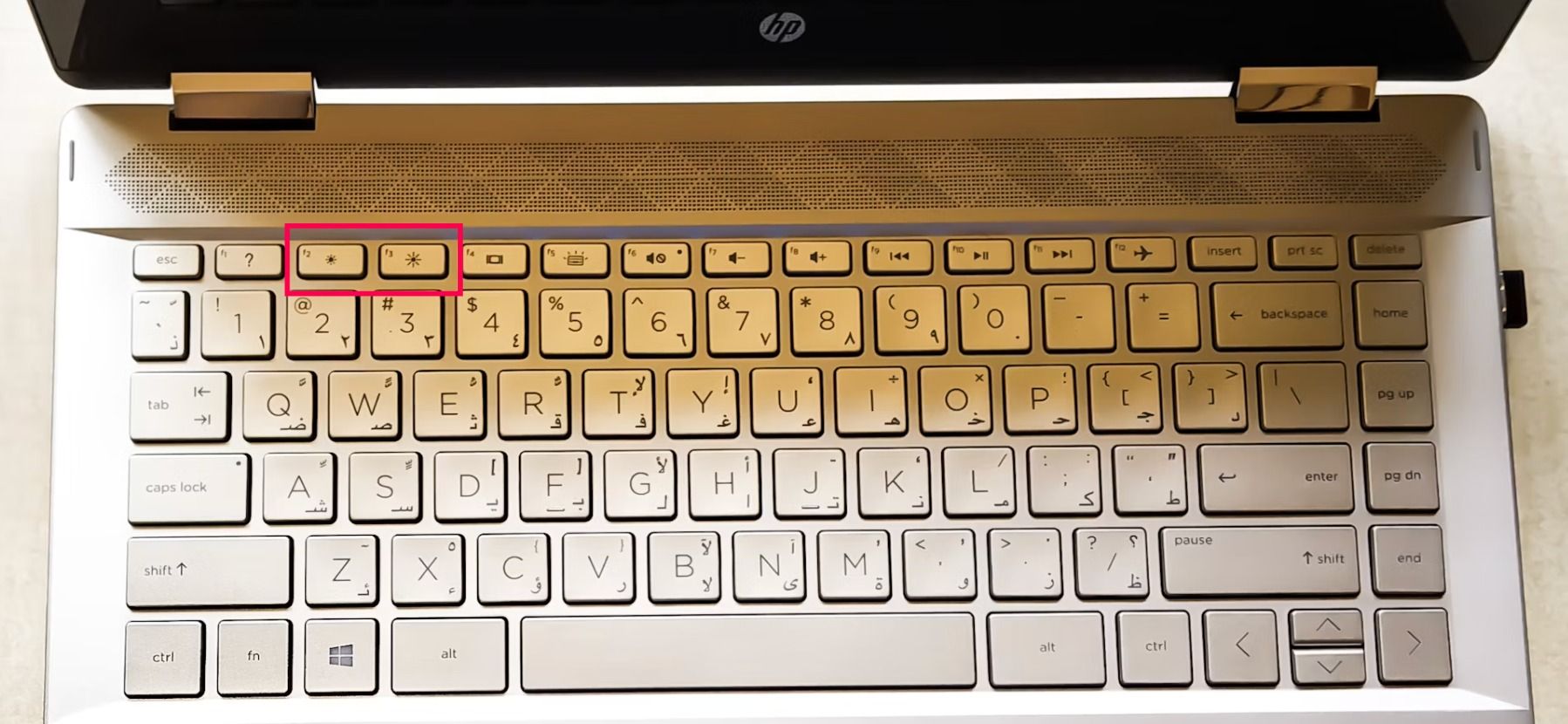
Sometimes the issue is as simple as the brightness being turned all the way down. Use your laptop’s brightness keys to increase the brightness and check if the screen lights up.
Disable Hibernation Mode
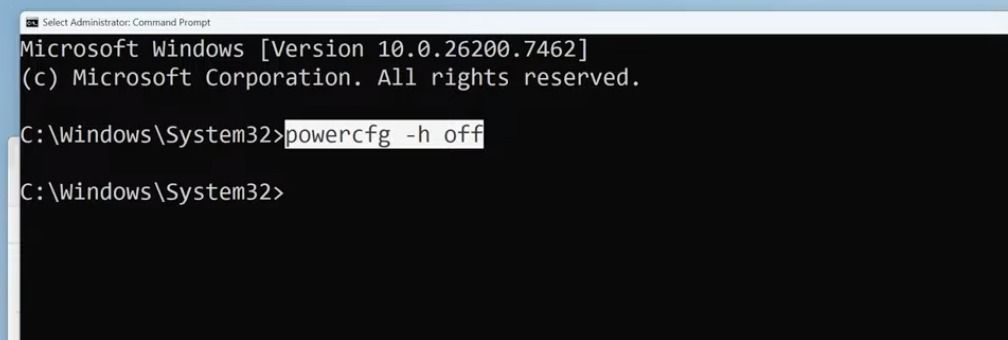
Corrupted hibernation files can cause display problems. Disabling hibernation and performing a reboot might restore your screen. Use a Windows Terminal command "powercfg -h off" to turn off Hibernation mode.
Update Graphics Drivers and BIOS
Outdated drivers or BIOS versions can prevent your laptop’s screen from displaying properly. Updating these can often resolve display issues. Refer to this Microsoft article about updating display drivers in Windows 11.
Perform a Hard Reset
A hard reset can help with firmware or software glitches affecting the display:
This procedure does not erase your data and differs from a factory reset.
Test with an External Monitor
Connect your HP laptop to an external monitor through HDMI or VGA. If the external display works, use the F4 or the monitor icon key to toggle the display output. A working external screen suggests that the laptop’s LCD or internal cable might be damaged and may require professional repair.
Reseat the RAM Modules
Loose RAM can cause screen issues:
Replace any faulty module identified.
The black screen might be due to simple settings like brightness levels or hibernation errors, or hardware related issues such as loose RAM or damaged display components. System drivers and BIOS updates also play a critical role in maintaining proper screen output.
What if my laptop screen is physically damaged?
First, check the display and backlight connections. Some common issues include stuck pixels or screen burn-in, which might be resolved with certain fixes. However, if you need to replace your screen, professional assistance is advisable.
How much does it cost to replace an HP laptop screen?
Professional screen replacements typically start around $200. If attempting repairs yourself, replacement parts can be found for less than $100. Depending on your laptop’s age and condition, consider whether buying a new laptop might be more cost-effective.
For more information on troubleshooting laptop display issues, our article on How to Fix a Chromebook Black Screen offers additional tips useful across different devices.
Explore our recommendations for external displays like 27-Inch 2K Monitors to enhance your desktop setup.
To learn more about gaming monitors that can deliver excellent visuals for laptops and desktops alike, check out our detailed reviews.