How to Determine if Someone is Remotely Accessing Your iPhone
Learn key signs of unauthorized remote access on your iPhone and steps to secure your device effectively.
Chromebooks are known for being reliable and simple, but a black screen can still stop you in your tracks. The display shows nothing but darkness even though the device seems powered on. This issue is not as common as on other laptops, yet it happens for a few clear reasons. Most of the time the cause is software or a simple setting rather than a broken screen.
The good news is that many black screen problems on a Chromebook can be fixed at home with basic steps. You do not always need a repair shop. Here is a clear path to diagnose and solve the problem.
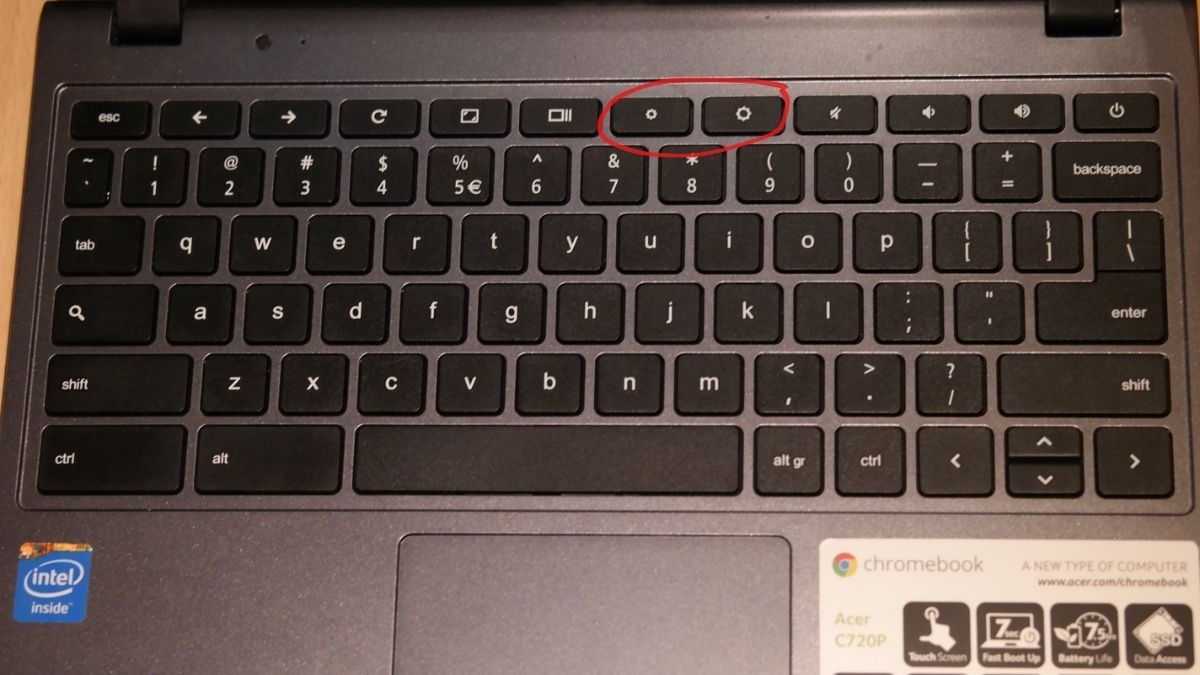
First, try the easiest check. ChromeOS lets you lower the brightness all the way until the screen looks completely off. Press and hold the brightness-up key in the top row of the keyboard. Keep holding it for several seconds. The display should gradually light up. If nothing changes, move on.
Next, connect the Chromebook to a charger. Older models or devices with a drained battery often refuse to show anything until they receive power. Plug it in and watch for a light near the charging port. A white light usually means it is charging and should wake up soon. An orange light means the battery is fully empty. Leave it plugged in for 5 to 10 minutes, then press the power button. If no light appears at all, try a different charger and cable.
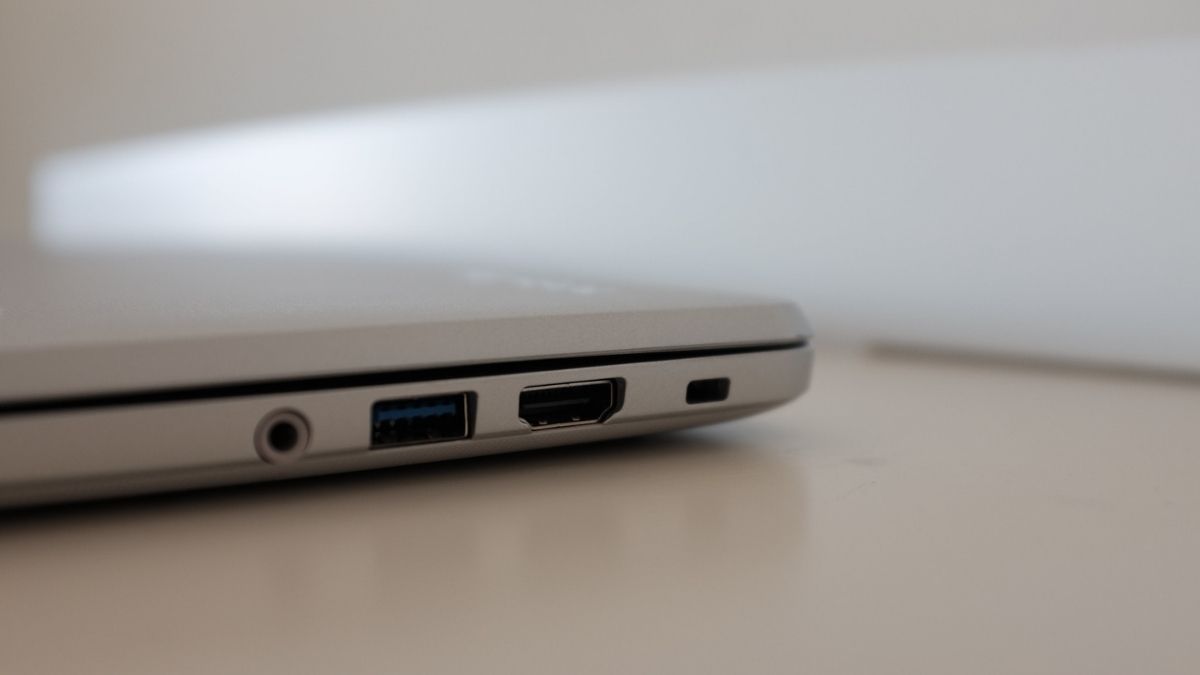
If the screen is still black, connect an external monitor with an HDMI cable. This test tells you whether the built-in display has failed. If the image appears on the external screen, the Chromebook itself is working and the internal panel needs service. Under warranty, most makers will replace the screen at no cost. Outside warranty you can get a quote from the manufacturer or a local laptop repair shop.
When those steps do not help, force the Chromebook to shut down completely. Press and hold the power button for about 10 seconds. Wait a moment, then press the power button again or close and reopen the lid. This clears temporary glitches that keep the display dark. On some older Samsung Chromebooks, you may also find a small recovery button on the back. Press it once while the device is off, then turn it back on.
If the black screen continues, stronger software fixes become necessary. A Powerwash wipes local data and removes the Google account but often clears deep software problems. You can also enter recovery mode and reinstall ChromeOS from a fresh copy. These options are more involved, so back up important files first if you can access them another way.
Most black screens turn out to be simple brightness, power, or temporary software issues. Hardware failure is less common unless the device was dropped or has known quality problems. Work through the steps in order, and you will usually restore the display at no extra cost.